Blur Face Online
Upload a photo and our free AI face blur tool automatically detects and blurs faces in your photo online in seconds. Adjustable intensity, support for multiple faces, instant download — no sign-up, fully private.
How the Blur Face Tool Works
Four steps from photo to a privacy-safe, blurred image — all processed locally on your device.
Upload or take a photo
Upload a photo from your device or capture one directly with your camera — right in the browser.
AI detects every face
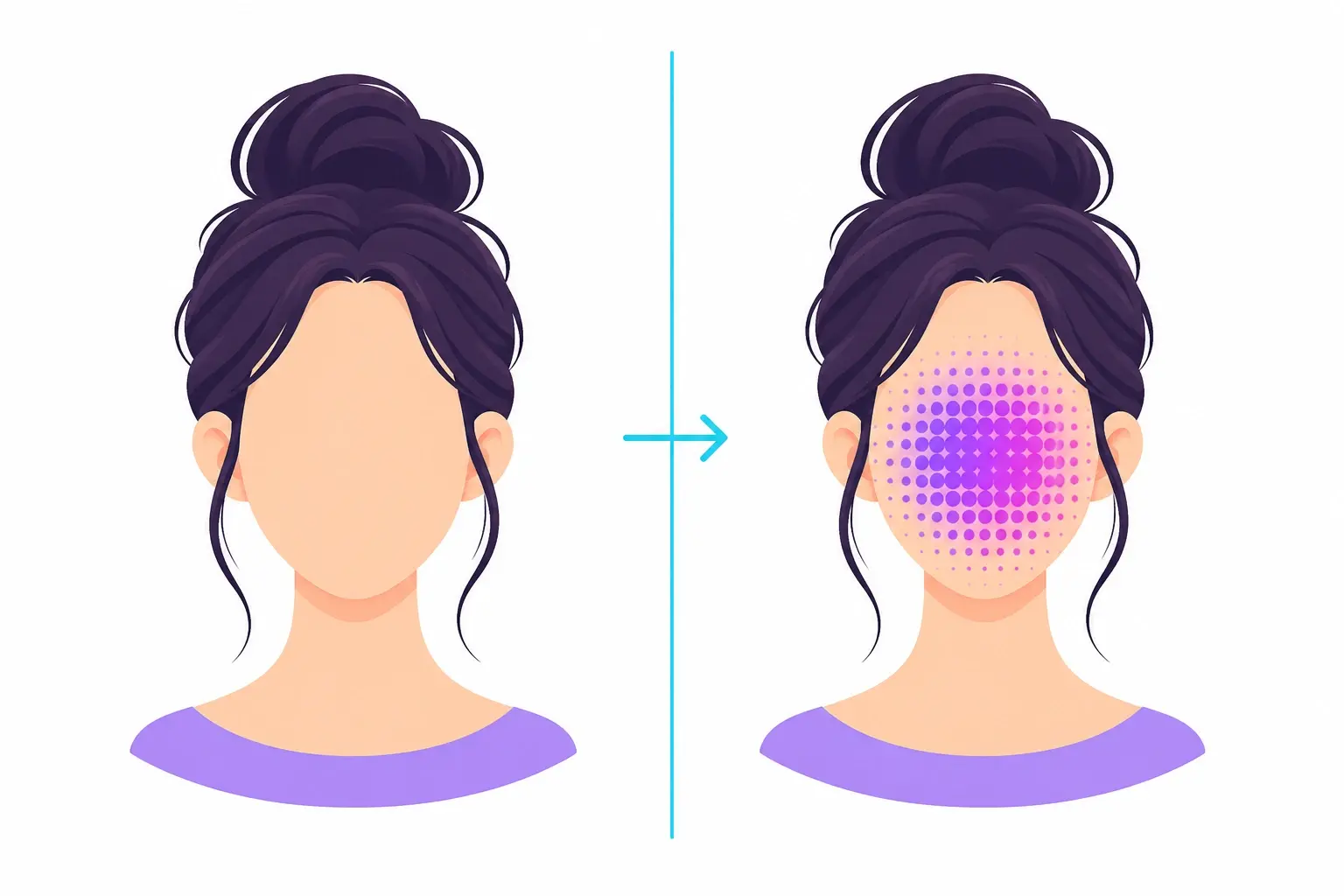
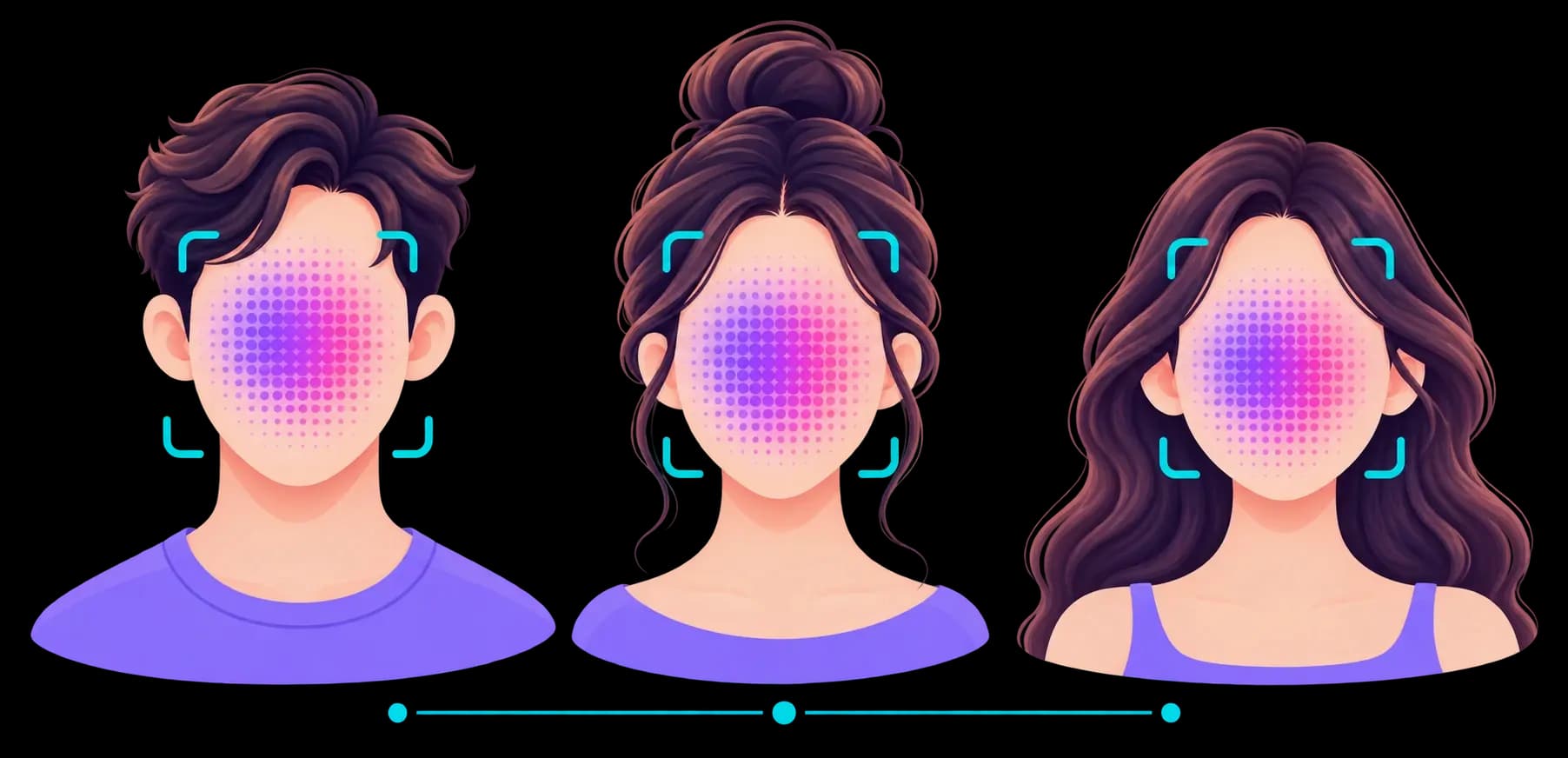
A face-detection model runs entirely on your device and locates every face in the photo, drawing a bounding region around each one.
Adjust blur & choose faces
Use the intensity slider to control how strong the blur is, and toggle individual faces on or off if multiple people are in the photo.
Download your blurred photo
Download the result as a PNG with the selected faces blurred — ready to share or post while protecting identities.
Common Reasons to Blur a Face in a Photo
Protect identities before sharing, publishing, or posting an image online.
Protect Privacy
Blur bystanders or minors before posting a photo publicly on social media.
Anonymize Screenshots
Censor identities in screenshots shared for support, reviews, or documentation.
Group Photos
Blur specific people in a group photo while keeping others clearly visible.
Content Creation
Prepare vlogs, thumbnails, or blog images that require blurred faces for compliance.
Publishing & Journalism
Protect sources or subjects when publishing sensitive photographs.
Quick, Free, No Install
Blur and download in seconds — no software, account, or watermark.
Tips for Accurate Face Detection
Follow these tips so the AI reliably finds every face in your photo.
Use good lighting
Well-lit photos with clear faces are detected far more reliably than dark or backlit images.
Avoid extreme angles
Faces that are mostly turned away or heavily tilted may be missed by the detector.
Keep faces reasonably sized
Very small or distant faces in a large photo can be harder to detect accurately.
Use a clear, unobstructed photo
Sunglasses, masks, or heavy shadows across a face can reduce detection accuracy.
Increase intensity for full coverage
If facial features are still faintly visible, raise the blur intensity slider.
Review before downloading
Check the preview and toggle any missed or unwanted faces before saving your result.
No face detected? Try a clearer, better-lit photo with the face facing the camera more directly and not too small within the frame.
Face Shapes Guide
Explore oval, round, square, heart, diamond, oblong, and triangle face shapes
Frequently Asked Questions
Everything you need to know about blurring faces online with this tool.
How do I blur a face in a photo online for free?
Upload your photo to this tool, and the AI automatically detects any faces present. Adjust the blur intensity slider to your preference, then click "Download Blurred Photo" to save the result — no sign-up or payment required.
Is this blur face tool really free?
Yes. Blurring faces and downloading the result is completely free, with no watermark, sign-up, or usage limit. All processing happens locally in your browser.
Is my photo uploaded to a server?
No. Face detection and blurring both run entirely client-side using on-device AI. Your photo is never uploaded, transmitted, or stored anywhere — it stays on your device the whole time.
Can I blur multiple faces in one photo?
Yes. The tool detects every face in the photo automatically. If more than one face is found, numbered toggle chips let you choose exactly which faces to blur and which to leave visible.
Can I control how strong the blur is?
Yes. A blur intensity slider (8–40px) lets you fine-tune the strength of the blur in real time — from a light blur to a heavy, fully obscuring blur.
What image formats are supported?
You can upload JPG, PNG, or WebP images up to 10MB. The blurred result is downloaded as a PNG file.
Why wasn't a face detected in my photo?
Detection accuracy depends on photo quality. Try a clearer, better-lit photo with the face(s) fully visible, not heavily angled, obscured, or too small in the frame.
Does the tool pixelate or blur faces?
This tool uses a smooth Gaussian-style blur effect (not pixelation) applied precisely over each detected face region, giving a natural, camera-style privacy blur.
Can I use this to censor an image for privacy or publishing?
Yes — this tool is commonly used to anonymize photos before sharing online, blur bystanders' faces, censor identities in screenshots, or prepare images for publication where privacy is required.
Will the blur look like it was added in a professional photo editor?
The blur is rendered directly on an HTML canvas using the browser's native blur filter, producing a clean, natural-looking result comparable to a quick edit in a photo editor — without installing any software.
Blurring Faces Online: A Complete Guide
How face blurring works, when to use it, and how this tool keeps your photos private
What Is Face Blurring?
Face blurring is the process of obscuring a person's face in a photo so they can no longer be identified, while leaving the rest of the image intact. It's widely used to protect privacy in photos shared publicly, in journalism, in content moderation, and whenever an image needs to be published without revealing someone's identity.
How This Tool Works
This tool runs an on-device AI face detector in your browser to locate every face in the photo. A soft Gaussian-style blur is then applied precisely over each detected face region using the browser's native canvas rendering. Your photo never leaves your device — nothing is uploaded to a server at any point.
Where Face Blurring Is Commonly Used
Social media
Blur bystanders or minors before posting
Screenshots
Censor identities in shared support/help images
Journalism
Protect sources and subjects when publishing
Group photos
Blur select people while keeping others visible
Content creation
Prepare thumbnails and blog images for compliance
Documentation
Anonymize photos used in reports or presentations